Feb 27 • Jordan Felber
26 Essential AutoCAD Commands Every Landscape Designer Should Know
Related — AutoCAD for Landscape Design Course
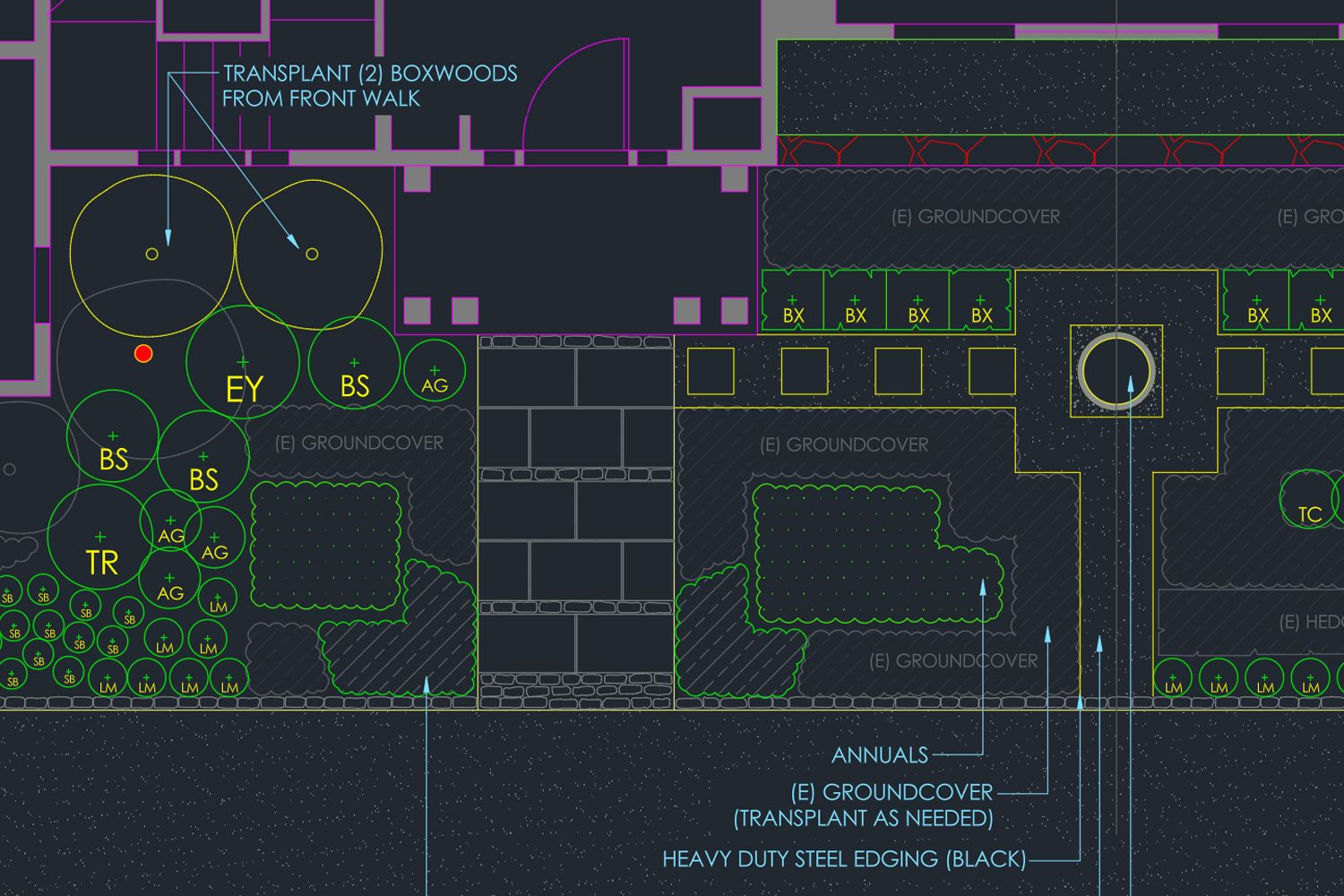
AutoCAD commands are the foundation of how landscape designers turn concepts into precise, buildable drawings. While the software includes ribbons and visual toolsets, real efficiency comes from understanding how to work directly through the AutoCAD command line, where speed and accuracy shape a professional workflow.
In landscape design, drafting moves between importing surveys, shaping planting beds, refining hardscape geometry, labeling materials, and preparing construction documents. Knowing the right AutoCAD commands and understanding how they work together allows designers to move confidently through these stages without interrupting their design thinking.
This guide focuses on the AutoCAD commands landscape designers actually use in practice, organized by workflow rather than alphabetically. Whether you are building confidence with AutoCAD basic commands or refining an established process, the goal is to help you draft faster, work more intentionally, and discover more efficient ways to use familiar tools across every project.
In landscape design, drafting moves between importing surveys, shaping planting beds, refining hardscape geometry, labeling materials, and preparing construction documents. Knowing the right AutoCAD commands and understanding how they work together allows designers to move confidently through these stages without interrupting their design thinking.
This guide focuses on the AutoCAD commands landscape designers actually use in practice, organized by workflow rather than alphabetically. Whether you are building confidence with AutoCAD basic commands or refining an established process, the goal is to help you draft faster, work more intentionally, and discover more efficient ways to use familiar tools across every project.
What Is an AutoCAD Command?
AutoCAD relies on a command-driven workflow, where nearly every action begins with a direct instruction entered through the interface or the AutoCAD command line. While many designers first encounter tools through icons and menus, professional drafting becomes significantly faster once commands are understood and used intentionally.
Not all inputs inside AutoCAD function the same way. Commands, aliases, and keyboard shortcuts each play a different role in how designers interact with drawings. Understanding how these tools differ helps reduce repetitive clicks, improve drafting speed, and maintain control when working through complex landscape plans or revisions.
Not all inputs inside AutoCAD function the same way. Commands, aliases, and keyboard shortcuts each play a different role in how designers interact with drawings. Understanding how these tools differ helps reduce repetitive clicks, improve drafting speed, and maintain control when working through complex landscape plans or revisions.
Command: The Action Inside AutoCAD
A command is the full instruction that tells AutoCAD to perform a specific task. Commands such as LINE, COPY, OFFSET, TRIM, and HATCH control the creation, modification, and documentation of geometry within a drawing. They can be launched from the ribbon interface, but professionals typically activate them through the AutoCAD command line, where execution is faster and more precise. Every planting bed boundary, patio outline, dimension, or area calculation ultimately begins with a command. Understanding commands as actions rather than icons shifts how you work inside the software and creates a more controlled, intentional drafting process.
Alias: The Shortened Command Entry
An alias is a shortened version of a command that produces the same result with fewer keystrokes. For example, typing CO activates COPY, and L activates LINE. These are often referred to as AutoCAD key commands because they reduce friction during repetitive drafting tasks. Aliases operate entirely within AutoCAD’s internal workflow and are customizable, allowing designers to refine their drafting speed over time. In professional environments, reliance on aliases instead of navigating menus is one of the simplest ways to improve efficiency, especially when making rapid adjustments during revisions.
Shortcut: The Keyboard Combination
A shortcut is a keyboard combination such as Ctrl + C or Ctrl + V that performs a broader system-level function. These shortcuts often work across many programs and are not exclusive to AutoCAD. While useful, shortcuts are different from commands and aliases because they typically interact with the clipboard or general interface rather than directly controlling drafting geometry. Understanding this distinction helps clarify why experienced designers prioritize command fluency and aliases when working on landscape plans, where precision and repetition demand a more controlled approach.
Why Commands Matter in Landscape Design Workflows
Landscape design drawings move through distinct phases, from importing surveys and tracing existing conditions to refining planting layouts and producing construction documents. Each of these stages depends on precise execution. Knowing the right AutoCAD commands allows designers to move efficiently between drafting geometry, editing boundaries, annotating materials, and calculating quantities without interrupting the flow of design decisions.
As projects become more detailed, small inefficiencies compound. Repeatedly navigating menus, searching for tools, or redrawing geometry slows momentum and increases the risk of inconsistencies. Working confidently through the AutoCAD command line reduces that friction. Commands such as OFFSET, TRIM, BLOCK, and HATCH begin to function as part of a repeatable system rather than isolated tools.
Ultimately, command fluency supports clarity. Clean polylines produce accurate area calculations, well-structured blocks improve revisions, and precise editing tools maintain alignment across sheets. In professional landscape workflows, AutoCAD commands are not just drafting utilities. They are the mechanisms that translate design intent into coordinated, buildable plans.
As projects become more detailed, small inefficiencies compound. Repeatedly navigating menus, searching for tools, or redrawing geometry slows momentum and increases the risk of inconsistencies. Working confidently through the AutoCAD command line reduces that friction. Commands such as OFFSET, TRIM, BLOCK, and HATCH begin to function as part of a repeatable system rather than isolated tools.
Ultimately, command fluency supports clarity. Clean polylines produce accurate area calculations, well-structured blocks improve revisions, and precise editing tools maintain alignment across sheets. In professional landscape workflows, AutoCAD commands are not just drafting utilities. They are the mechanisms that translate design intent into coordinated, buildable plans.
The Essential AutoCAD Commands for Landscape Designers
AutoCAD includes hundreds of tools, but only a focused group of commands consistently supports the way landscape designers develop plans from concept through construction documentation. The commands below are organized by workflow stage rather than alphabetically, reflecting how drawings are actually built and refined in practice. From project setup and drafting geometry to annotation and efficiency tools, each command plays a specific role in helping designers work faster while maintaining accuracy across a project.
Drawing Setup Commands
Before drafting begins, the drawing must be configured correctly. Setting proper units, attaching reference materials, and ensuring the file displays accurately prevents scaling errors and coordination issues later. The following commands establish the technical foundation for every landscape plan.
1. UNITS
The UNITS command defines the measurement system used within your drawing, including whether the file is set to feet, inches, meters, or millimeters. While this may seem basic, incorrect unit settings are one of the most common sources of scaling errors in landscape drawings. Before drafting begins, confirming units ensures that imported surveys, consultant files, and construction dimensions align accurately.
In landscape design, projects often involve coordinating civil drawings, architectural backgrounds, and site surveys that may not share the same unit type. Running the UNITS command at the start of every project establishes consistency and prevents downstream issues with scaling, area calculations, and dimension accuracy. A simple unit mismatch can distort planting layouts or hardscape dimensions, so professional workflows treat UNITS as a required first step rather than an afterthought.
In landscape design, projects often involve coordinating civil drawings, architectural backgrounds, and site surveys that may not share the same unit type. Running the UNITS command at the start of every project establishes consistency and prevents downstream issues with scaling, area calculations, and dimension accuracy. A simple unit mismatch can distort planting layouts or hardscape dimensions, so professional workflows treat UNITS as a required first step rather than an afterthought.
2. IMAGEATTACH
The IMAGEATTACH command allows you to insert raster images such as surveys, aerial photographs, or site documentation directly into your AutoCAD file. Unlike vector drawings, these images act as visual references that can be scaled, aligned, and traced to establish existing conditions.
Landscape designers frequently rely on IMAGEATTACH when working from PDF surveys, GIS exports, drone imagery, or site photos. Once attached, images can be scaled using known dimensions and locked onto dedicated layers for reference. This command is especially useful in early project phases, where tracing property boundaries, locating utilities, or identifying tree positions sets the foundation for accurate design development. Proper use of IMAGEATTACH streamlines the transition from site analysis to drafting without recreating information manually.
Landscape designers frequently rely on IMAGEATTACH when working from PDF surveys, GIS exports, drone imagery, or site photos. Once attached, images can be scaled using known dimensions and locked onto dedicated layers for reference. This command is especially useful in early project phases, where tracing property boundaries, locating utilities, or identifying tree positions sets the foundation for accurate design development. Proper use of IMAGEATTACH streamlines the transition from site analysis to drafting without recreating information manually.
3. REGEN
The REGEN command regenerates the drawing display and recalculates object geometry on screen. As landscape plans become more complex with blocks, hatches, xrefs, and detailed planting layouts, visual performance can degrade or objects may appear temporarily misaligned.
Running REGEN refreshes the file and ensures that lineweights, linetypes, and geometry are displayed accurately. While it does not change the actual drawing data, it improves visual clarity and performance, particularly after scaling operations or large edits. In larger landscape projects, periodically regenerating the drawing helps maintain a responsive drafting environment and prevents visual inconsistencies from distracting during revisions or coordination work.
Running REGEN refreshes the file and ensures that lineweights, linetypes, and geometry are displayed accurately. While it does not change the actual drawing data, it improves visual clarity and performance, particularly after scaling operations or large edits. In larger landscape projects, periodically regenerating the drawing helps maintain a responsive drafting environment and prevents visual inconsistencies from distracting during revisions or coordination work.
Drawing Setup Commands
Once the file is properly set up, drafting begins with defining the primary geometry of the landscape. These commands shape planting beds, pathways, patios, and structural edges, forming the core framework of the plan. Mastery here ensures boundaries are clean, editable, and ready for refinement.
4. PLINE
The PLINE command, short for polyline, creates connected line segments that function as a single object. Unlike individual LINE segments, a polyline maintains continuity between vertices, which allows it to be edited, offset, hatched, or measured as one unified boundary. This distinction becomes critical as drawings grow more complex.
In landscape design, PLINE is used to outline patios, planting beds, pathways, retaining walls, and property boundaries. Because the geometry behaves as one object, it supports clean area calculations and consistent offsets for material build ups. Using PLINE instead of disconnected lines reduces cleanup work later and ensures that boundaries remain accurate through revisions. For most landscape plans, PLINE becomes one of the most frequently used AutoCAD commands.
In landscape design, PLINE is used to outline patios, planting beds, pathways, retaining walls, and property boundaries. Because the geometry behaves as one object, it supports clean area calculations and consistent offsets for material build ups. Using PLINE instead of disconnected lines reduces cleanup work later and ensures that boundaries remain accurate through revisions. For most landscape plans, PLINE becomes one of the most frequently used AutoCAD commands.
5. SPLINE
The SPLINE command creates smooth, continuous curves defined by control points. Unlike arcs or segmented polylines, splines allow for more fluid and organic geometry, which is often necessary in landscape compositions that move away from rigid, orthogonal layouts.
Landscape designers use SPLINE when shaping natural planting beds, informal garden paths, water features, and contour-based forms. It is particularly useful in projects influenced by ecological or naturalistic planting strategies, where geometry should feel intentional but not mechanical. While splines can be powerful, they should be used deliberately, as overly complex curves can complicate editing or construction detailing. When applied strategically, SPLINE supports expressive design while maintaining precision within the drawing.
Landscape designers use SPLINE when shaping natural planting beds, informal garden paths, water features, and contour-based forms. It is particularly useful in projects influenced by ecological or naturalistic planting strategies, where geometry should feel intentional but not mechanical. While splines can be powerful, they should be used deliberately, as overly complex curves can complicate editing or construction detailing. When applied strategically, SPLINE supports expressive design while maintaining precision within the drawing.
6. CIRCLE
The CIRCLE command draws circular geometry based on a defined center point and radius or diameter. Though simple, it plays an essential role in landscape drafting, especially when representing trees, shrubs, and circular hardscape elements.
In planting plans, CIRCLE is commonly used to define tree canopy extents or shrub masses before converting them into blocks for reuse. It is also useful for drafting round patios, fire pits, fountains, or seat walls. Because circles are precise and mathematically defined, they provide clean geometry for offsets, hatching, and area calculations. Even in more organic compositions, circular geometry often forms the foundation of planting symbols and focal elements.
In planting plans, CIRCLE is commonly used to define tree canopy extents or shrub masses before converting them into blocks for reuse. It is also useful for drafting round patios, fire pits, fountains, or seat walls. Because circles are precise and mathematically defined, they provide clean geometry for offsets, hatching, and area calculations. Even in more organic compositions, circular geometry often forms the foundation of planting symbols and focal elements.
7. OFFSET
The OFFSET command creates a parallel copy of an object at a specified distance. This command is fundamental in construction-oriented drafting because it allows designers to define material thicknesses, planting setbacks, and edge conditions with precision.
In landscape workflows, OFFSET is used to establish pathway widths, patio build ups, wall thicknesses, edging details, and buffer zones around planting beds. Instead of manually redrawing boundaries, OFFSET maintains consistent spacing and alignment. When working with polylines, offsetting becomes especially efficient because entire boundaries can be duplicated in a single step. Mastering OFFSET significantly reduces drafting time and ensures dimensional consistency throughout the plan.
In landscape workflows, OFFSET is used to establish pathway widths, patio build ups, wall thicknesses, edging details, and buffer zones around planting beds. Instead of manually redrawing boundaries, OFFSET maintains consistent spacing and alignment. When working with polylines, offsetting becomes especially efficient because entire boundaries can be duplicated in a single step. Mastering OFFSET significantly reduces drafting time and ensures dimensional consistency throughout the plan.
8. JOIN
The JOIN command combines multiple lines or arcs into a single polyline. This is particularly useful when geometry has been drafted in segments but needs to function as one continuous boundary for editing, hatching, or calculating area.
In landscape plans, JOIN is often used to clean up patio edges, unify planting bed outlines, or consolidate building footprints imported from consultant drawings. A closed polyline allows for accurate area calculations and cleaner offsets, which are critical for estimating materials and maintaining drawing clarity. Rather than redrawing fragmented geometry, JOIN streamlines the drafting process and reinforces a more organized, professional workflow.
In landscape plans, JOIN is often used to clean up patio edges, unify planting bed outlines, or consolidate building footprints imported from consultant drawings. A closed polyline allows for accurate area calculations and cleaner offsets, which are critical for estimating materials and maintaining drawing clarity. Rather than redrawing fragmented geometry, JOIN streamlines the drafting process and reinforces a more organized, professional workflow.
Editing Tool Commands
After the primary geometry is established, drawings require refinement. These commands adjust, align, and clean up objects so edges meet precisely and layouts remain consistent. Effective use of editing tools keeps plans accurate as revisions and design adjustments occur.
9. TRIM
The TRIM command removes portions of objects that extend beyond defined boundaries. It is one of the most frequently used AutoCAD commands because clean intersections are essential for professional drawings. Instead of manually redrawing lines, TRIM quickly resolves overlaps and excess geometry.
In landscape plans, TRIM is used to clean up patio edges against walls, refine planting bed boundaries where they meet pathways, and remove overhanging lines from imported consultant drawings. As designs evolve, geometry often shifts, and TRIM keeps edges precise without rebuilding the drawing. Consistent use of TRIM helps maintain clarity, especially when coordinating multiple layers such as hardscape, planting, and structural elements.
In landscape plans, TRIM is used to clean up patio edges against walls, refine planting bed boundaries where they meet pathways, and remove overhanging lines from imported consultant drawings. As designs evolve, geometry often shifts, and TRIM keeps edges precise without rebuilding the drawing. Consistent use of TRIM helps maintain clarity, especially when coordinating multiple layers such as hardscape, planting, and structural elements.
10. EXTEND
The EXTEND command lengthens objects until they meet another boundary. Where TRIM removes excess geometry, EXTEND completes it. Together, these two commands form the backbone of clean drafting.
Landscape designers rely on EXTEND when aligning walls to building edges, adjusting fence lines to meet property boundaries, or ensuring hardscape elements intersect correctly. Rather than redrawing segments, EXTEND allows precise adjustments that maintain continuity. When used alongside polylines, it reinforces clean edge control across patios, walkways, and garden beds.
Landscape designers rely on EXTEND when aligning walls to building edges, adjusting fence lines to meet property boundaries, or ensuring hardscape elements intersect correctly. Rather than redrawing segments, EXTEND allows precise adjustments that maintain continuity. When used alongside polylines, it reinforces clean edge control across patios, walkways, and garden beds.
11. MOVE
The MOVE command repositions selected objects from one location to another using a defined base point. While simple in function, its precision makes it essential in layout refinement.
In landscape workflows, MOVE is used to reposition trees, shift furniture arrangements, adjust lighting fixtures, or fine-tune planting groupings. Because landscape plans often involve iterative spacing adjustments, MOVE allows designers to test compositions without rebuilding geometry. Paired with object snaps, it ensures accurate placement relative to other design elements.
In landscape workflows, MOVE is used to reposition trees, shift furniture arrangements, adjust lighting fixtures, or fine-tune planting groupings. Because landscape plans often involve iterative spacing adjustments, MOVE allows designers to test compositions without rebuilding geometry. Paired with object snaps, it ensures accurate placement relative to other design elements.
12. COPY
The COPY command duplicates selected objects within the drawing. Unlike system-level shortcuts that copy to the clipboard, the COPY command operates directly within the drafting environment, allowing precise placement of repeated elements.
Landscape designers use COPY extensively for repeating plant symbols, light fixtures, pavers, benches, and other modular elements. Establishing a clear base point during copying ensures alignment and consistency. In planting plans especially, COPY supports rhythm and spacing while maintaining drawing efficiency. When combined with commands such as ARRAYPATH or DIVIDE, it becomes part of a broader repetition strategy.
Landscape designers use COPY extensively for repeating plant symbols, light fixtures, pavers, benches, and other modular elements. Establishing a clear base point during copying ensures alignment and consistency. In planting plans especially, COPY supports rhythm and spacing while maintaining drawing efficiency. When combined with commands such as ARRAYPATH or DIVIDE, it becomes part of a broader repetition strategy.
13. ROTATE
The ROTATE command turns selected objects around a defined base point. Orientation plays a significant role in landscape composition, particularly when working with angled geometry or irregular site boundaries.
Designers use ROTATE to align furniture with pathways, orient pergolas relative to views, or adjust plant symbols to avoid visual repetition. In construction drawings, it also ensures that structural elements align correctly with adjacent geometry. Accurate rotation supports both aesthetic intent and dimensional clarity.
Designers use ROTATE to align furniture with pathways, orient pergolas relative to views, or adjust plant symbols to avoid visual repetition. In construction drawings, it also ensures that structural elements align correctly with adjacent geometry. Accurate rotation supports both aesthetic intent and dimensional clarity.
14. MIRROR
The MIRROR command creates a reflected copy of selected objects across a defined axis. It is especially effective in formal or symmetrical landscape layouts.
In entry gardens, courtyards, and axial compositions, MIRROR allows designers to draft one side of a layout and duplicate it accurately across a centerline. This not only improves drafting speed but also ensures symmetry remains precise. Even in less formal designs, MIRROR can assist when balancing site elements relative to architecture.
In entry gardens, courtyards, and axial compositions, MIRROR allows designers to draft one side of a layout and duplicate it accurately across a centerline. This not only improves drafting speed but also ensures symmetry remains precise. Even in less formal designs, MIRROR can assist when balancing site elements relative to architecture.
15. SCALE
The SCALE command resizes objects proportionally based on a base point and scale factor. It is critical when adjusting imported drawings or resizing symbols to match drawing scale.
Landscape designers often use SCALE to adjust tree canopy symbols, resize pergolas or furnishings, or calibrate imported surveys to known dimensions. Incorrect scaling can distort measurements and affect area calculations, so precision is essential. When applied carefully, SCALE ensures that all elements remain proportionally accurate within the overall plan.
Landscape designers often use SCALE to adjust tree canopy symbols, resize pergolas or furnishings, or calibrate imported surveys to known dimensions. Incorrect scaling can distort measurements and affect area calculations, so precision is essential. When applied carefully, SCALE ensures that all elements remain proportionally accurate within the overall plan.
16. DIVIDE
The DIVIDE command splits an object into equal segments by placing point markers along its length. This command is particularly useful when spacing elements consistently.
In landscape design, DIVIDE helps evenly space fence posts, pergola slats, pathway lights, or trees along a linear edge. Instead of estimating intervals manually, DIVIDE ensures uniform distribution based on exact measurements. It supports both aesthetic rhythm and construction accuracy.
In landscape design, DIVIDE helps evenly space fence posts, pergola slats, pathway lights, or trees along a linear edge. Instead of estimating intervals manually, DIVIDE ensures uniform distribution based on exact measurements. It supports both aesthetic rhythm and construction accuracy.
17. ARRAYPATH
The ARRAYPATH command distributes objects along a defined path while maintaining consistent spacing and orientation. It expands on basic copying by automating repetition along curves or irregular geometry.
Landscape designers use ARRAYPATH to place lights along winding pathways, align shrubs along curved bed edges, or repeat pavers in patterned installations. Because the array follows the underlying path geometry, changes to the base path can update the entire arrangement. ARRAYPATH significantly reduces repetitive drafting and improves consistency in large-scale layouts.
Landscape designers use ARRAYPATH to place lights along winding pathways, align shrubs along curved bed edges, or repeat pavers in patterned installations. Because the array follows the underlying path geometry, changes to the base path can update the entire arrangement. ARRAYPATH significantly reduces repetitive drafting and improves consistency in large-scale layouts.
Editing Tool Commands
With geometry refined, the next step is clear communication. These commands add material hatches, plant labels, dimensions, and area calculations that transform a drawing into buildable documentation. Accurate annotation ensures the intent of the landscape design is understood by clients, contractors, and collaborators.
18. HATCH
The HATCH command fills a closed boundary with a pattern, solid, or gradient. In landscape drawings, hatch patterns are essential for visually distinguishing materials and surfaces within a plan. Without hatch differentiation, patios, lawn areas, planting beds, and gravel zones can become visually indistinct.
Landscape designers use HATCH to represent turf, mulch, decomposed granite, concrete, pavers, or water features. Clean, closed polylines are critical for proper hatch application, which reinforces why earlier drafting precision matters. Consistent hatch scales and layer organization also improve clarity across multiple sheets. In construction documents, well-controlled hatch patterns communicate material intent quickly and reduce ambiguity for contractors.
Landscape designers use HATCH to represent turf, mulch, decomposed granite, concrete, pavers, or water features. Clean, closed polylines are critical for proper hatch application, which reinforces why earlier drafting precision matters. Consistent hatch scales and layer organization also improve clarity across multiple sheets. In construction documents, well-controlled hatch patterns communicate material intent quickly and reduce ambiguity for contractors.
19. MLEADER
The MLEADER command creates multileader annotations that connect text to a specific point or object within the drawing. It combines a leader line and text into a single coordinated annotation tool.
In landscape plans, MLEADER is used to label plant species, identify materials, tag lighting fixtures, and call out key design features. Because planting plans can contain dozens or hundreds of symbols, clear and organized leaders prevent visual confusion. Using consistent leader styles and layers maintains graphic hierarchy across sheets. MLEADER supports precise communication between designer, client, and contractor.
In landscape plans, MLEADER is used to label plant species, identify materials, tag lighting fixtures, and call out key design features. Because planting plans can contain dozens or hundreds of symbols, clear and organized leaders prevent visual confusion. Using consistent leader styles and layers maintains graphic hierarchy across sheets. MLEADER supports precise communication between designer, client, and contractor.
20. MTEXT
The MTEXT command creates multiline text blocks that can be formatted with paragraph control, alignment, and text styles. Unlike single-line text, MTEXT supports structured notes and longer descriptions.
Landscape designers use MTEXT for general notes, legends, sheet titles, planting schedules, and specification summaries. Organized annotation is critical in professional drawings, especially when coordinating with architects or civil engineers. Establishing consistent text styles early in a project ensures that documentation remains clean and legible. MTEXT allows information to be structured clearly without cluttering the plan.
Landscape designers use MTEXT for general notes, legends, sheet titles, planting schedules, and specification summaries. Organized annotation is critical in professional drawings, especially when coordinating with architects or civil engineers. Establishing consistent text styles early in a project ensures that documentation remains clean and legible. MTEXT allows information to be structured clearly without cluttering the plan.
21. DIMALLIGNED
The DIMALLIGNED command places a dimension line that aligns with the object being measured. This ensures that angled or non-orthogonal elements are dimensioned accurately rather than forced into horizontal or vertical measurements.
In landscape design, DIMALLIGNED is frequently used to measure patio edges, retaining walls, bed widths, and angled pathways. Accurate dimensions are essential in construction documentation, where contractors rely on precise measurements. Using aligned dimensions maintains clarity and reinforces the geometry of the design rather than distorting it through generic dimensioning.
In landscape design, DIMALLIGNED is frequently used to measure patio edges, retaining walls, bed widths, and angled pathways. Accurate dimensions are essential in construction documentation, where contractors rely on precise measurements. Using aligned dimensions maintains clarity and reinforces the geometry of the design rather than distorting it through generic dimensioning.
22. AREA
The AREA command calculates the square footage or square meters of a closed boundary. It is a practical tool that directly supports estimating and material planning.
Landscape designers use AREA to measure lawn coverage, planting zones, paving quantities, or water feature surfaces. When boundaries are drafted as closed polylines, area calculations become immediate and reliable. This command is particularly useful during budgeting phases, where accurate square footage informs material quantities and cost projections. In professional workflows, AREA bridges design intent with real-world implementation.
Landscape designers use AREA to measure lawn coverage, planting zones, paving quantities, or water feature surfaces. When boundaries are drafted as closed polylines, area calculations become immediate and reliable. This command is particularly useful during budgeting phases, where accurate square footage informs material quantities and cost projections. In professional workflows, AREA bridges design intent with real-world implementation.
Workflow Efficiency Commands
As drawings grow in scale and complexity, efficiency becomes critical. These commands help organize repeated elements, standardize graphic properties, and manage revisions without redrawing geometry. When used consistently, they streamline the drafting process and support a more controlled, professional workflow.
23. BLOCK
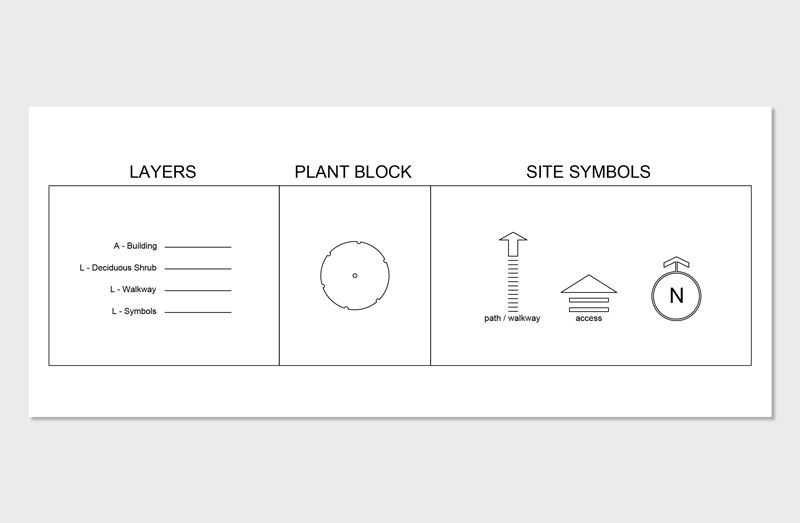
The BLOCK command converts selected objects into a reusable symbol that behaves as a single unit. Instead of managing multiple lines and arcs independently, a block consolidates geometry into one controllable object that can be inserted repeatedly throughout a drawing.
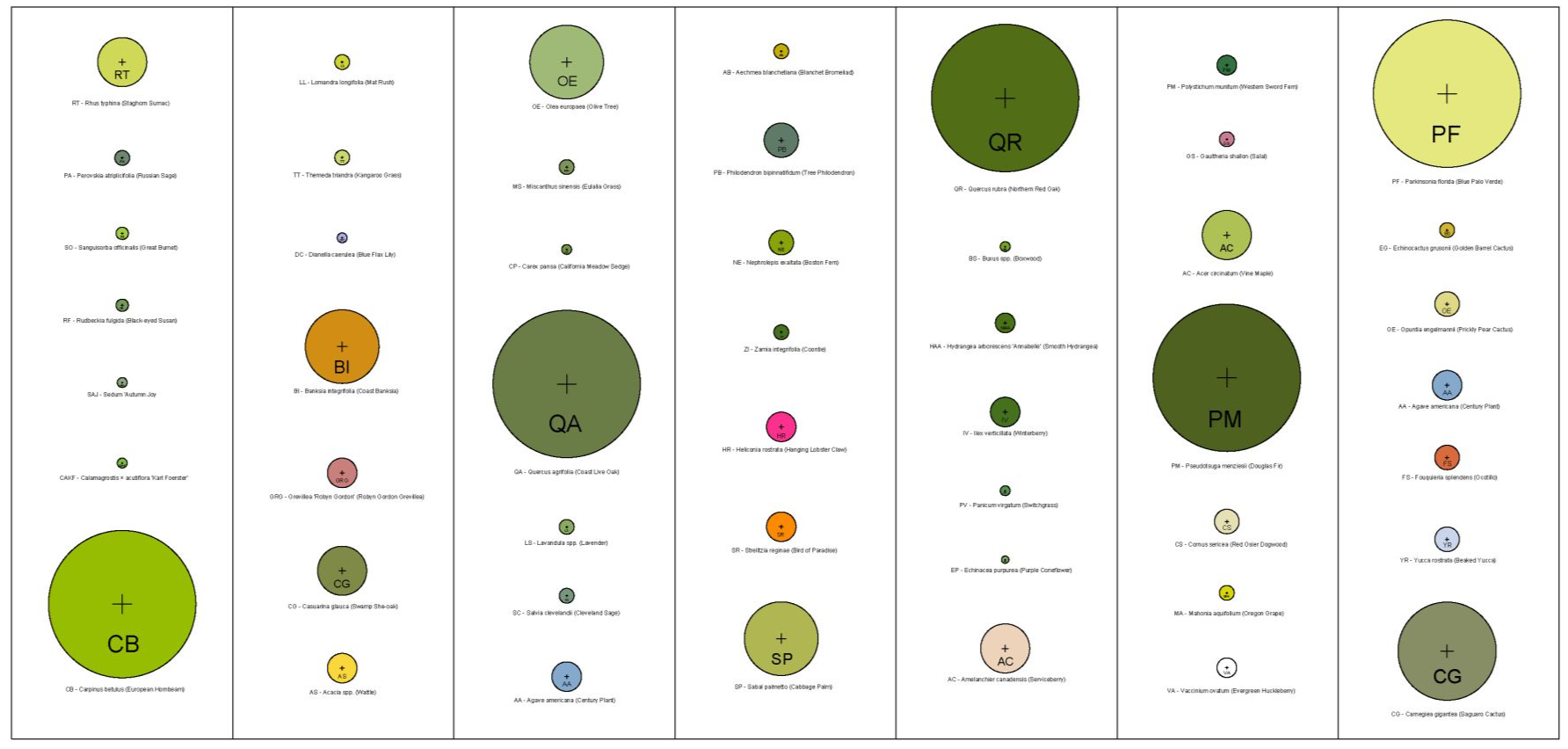
In landscape design, blocks are essential for tree symbols, shrubs, lighting fixtures, site furnishings, and custom details. Creating a block once and inserting it multiple times maintains graphic consistency and dramatically reduces drafting time. When revisions occur, editing the block definition updates every instance across the plan. This makes BLOCK one of the most powerful AutoCAD commands for maintaining efficiency and control in planting plans and construction documents.
In landscape design, blocks are essential for tree symbols, shrubs, lighting fixtures, site furnishings, and custom details. Creating a block once and inserting it multiple times maintains graphic consistency and dramatically reduces drafting time. When revisions occur, editing the block definition updates every instance across the plan. This makes BLOCK one of the most powerful AutoCAD commands for maintaining efficiency and control in planting plans and construction documents.
24. SELECTSIM
The SELECTSIM command selects all objects in the drawing that share similar properties, such as layer, block name, linetype, or color. It is a highly efficient way to isolate repeated elements without manually clicking each one.
Landscape designers use SELECTSIM to quickly gather all tree symbols of a specific type, select every lighting fixture, or isolate all hatch patterns for adjustment. This becomes especially useful in large planting plans where quantities need verification or global edits are required. Rather than searching through dense drawings, SELECTSIM allows immediate access to related elements, improving both speed and accuracy during revisions.
Landscape designers use SELECTSIM to quickly gather all tree symbols of a specific type, select every lighting fixture, or isolate all hatch patterns for adjustment. This becomes especially useful in large planting plans where quantities need verification or global edits are required. Rather than searching through dense drawings, SELECTSIM allows immediate access to related elements, improving both speed and accuracy during revisions.
25. MATCHPROP
The MATCHPROP command copies properties from one object to another. These properties can include layer assignment, color, linetype, lineweight, and other graphical attributes. It ensures visual consistency without manually reassigning settings.
In landscape drawings, MATCHPROP is used to standardize lineweights across hardscape elements, align hatch properties, or maintain consistent graphic hierarchy between sheets. When coordinating with architectural or civil backgrounds, it also helps reconcile differing graphic standards. By quickly synchronizing properties, MATCHPROP reinforces a clean and professional presentation throughout the drawing set.
In landscape drawings, MATCHPROP is used to standardize lineweights across hardscape elements, align hatch properties, or maintain consistent graphic hierarchy between sheets. When coordinating with architectural or civil backgrounds, it also helps reconcile differing graphic standards. By quickly synchronizing properties, MATCHPROP reinforces a clean and professional presentation throughout the drawing set.
26. REVCLOUD
The REVCLOUD command creates a revision cloud that highlights changes or areas of modification within a drawing. It visually communicates updates without requiring readers to compare sheets line by line.
Landscape designers use REVCLOUD during client revisions, contractor coordination, or phased updates to identify modified planting areas, adjusted hardscape edges, or newly added elements. Clear revision marking improves communication and reduces misunderstandings during implementation. In professional practice, REVCLOUD supports documentation transparency and ensures that changes are immediately visible to collaborators reviewing the plan.
Landscape designers use REVCLOUD during client revisions, contractor coordination, or phased updates to identify modified planting areas, adjusted hardscape edges, or newly added elements. Clear revision marking improves communication and reduces misunderstandings during implementation. In professional practice, REVCLOUD supports documentation transparency and ensures that changes are immediately visible to collaborators reviewing the plan.
The AutoCAD Commands Landscape Designers Use Most Often
While landscape designers rely on a broad range of AutoCAD commands, a small group consistently forms the backbone of daily drafting.
PLINE, OFFSET, TRIM, BLOCK, and HATCH appear in nearly every project phase, from early layout to final construction documentation. PLINE establishes clean, connected boundaries for planting beds and hardscape edges. OFFSET defines thicknesses, setbacks, and material build-ups with precision. TRIM refines intersections and keeps geometry sharp as revisions occur. BLOCK allows repeated elements such as trees and lighting fixtures to remain consistent and editable across the plan. HATCH visually distinguishes materials and surfaces so drawings communicate clearly to clients and contractors.
Together, these commands create a repeatable system. PLINE and OFFSET define structure, TRIM maintains clarity, BLOCK organizes repetition, and HATCH completes graphic communication. Mastery of these five AutoCAD commands alone significantly improves drafting speed and drawing quality. As projects scale in complexity, their combined use reduces redundancy, simplifies revisions, and reinforces a professional workflow that supports accurate, buildable landscape plans.
PLINE, OFFSET, TRIM, BLOCK, and HATCH appear in nearly every project phase, from early layout to final construction documentation. PLINE establishes clean, connected boundaries for planting beds and hardscape edges. OFFSET defines thicknesses, setbacks, and material build-ups with precision. TRIM refines intersections and keeps geometry sharp as revisions occur. BLOCK allows repeated elements such as trees and lighting fixtures to remain consistent and editable across the plan. HATCH visually distinguishes materials and surfaces so drawings communicate clearly to clients and contractors.
Together, these commands create a repeatable system. PLINE and OFFSET define structure, TRIM maintains clarity, BLOCK organizes repetition, and HATCH completes graphic communication. Mastery of these five AutoCAD commands alone significantly improves drafting speed and drawing quality. As projects scale in complexity, their combined use reduces redundancy, simplifies revisions, and reinforces a professional workflow that supports accurate, buildable landscape plans.
Frequently Asked Questions About AutoCAD Commands
What are the most important AutoCAD commands to learn?
The most important AutoCAD commands to learn are PLINE, OFFSET, TRIM, COPY, MOVE, ROTATE, SCALE, BLOCK, HATCH, and DIM tools. These commands form the core of drafting, editing, annotating, and organizing drawings. For landscape designers specifically, PLINE and OFFSET define geometry, TRIM refines intersections, BLOCK manages reusable symbols such as trees or lighting fixtures, and HATCH communicates materials. Mastering these essential AutoCAD commands allows users to move efficiently through complete drawing workflows rather than relying on ribbon navigation or isolated tools.
Where do you type AutoCAD commands?
AutoCAD commands are typed into the command line, which is typically located at the bottom of the AutoCAD interface. The command line allows users to enter full command names such as OFFSET or TRIM, or shortened aliases such as O or TR. While commands can also be accessed through the ribbon or tool palettes, typing directly into the command line is often faster and preferred in professional drafting workflows. If the command line is hidden, it can be toggled on within the interface settings.
Are AutoCAD commands different in AutoCAD LT?
Most core AutoCAD commands are the same in AutoCAD LT, including drafting, editing, annotation, and basic block tools. Commands such as LINE, PLINE, OFFSET, TRIM, BLOCK, and HATCH function similarly in both versions. However, AutoCAD LT does not include certain advanced features such as 3D modeling tools, custom programming with AutoLISP, or some automation capabilities available in the full version. For 2D landscape drafting and construction documentation, the primary AutoCAD commands remain largely consistent between versions.
How many AutoCAD commands are there?
AutoCAD includes hundreds of commands, with over 1,000 documented command variations depending on version and installed toolsets. However, most professionals regularly use a much smaller subset, typically 20 to 40 core commands, for everyday drafting and documentation. The total number can vary based on industry-specific toolsets and custom plugins, but efficient workflows rely on mastering a focused group of essential AutoCAD commands rather than memorizing the entire command list.

The Landscape Library Academy is an online platform teaching landscape professionals, students, homeowners and enthusiasts how to design landscapes and master software for the field.
The Landscape Library Academy is the education division of The Landscape Library.
Click here to visit TheLandscapeLibrary.com for media including education articles, projects features and more.
The Landscape Library Academy is the education division of The Landscape Library.
Click here to visit TheLandscapeLibrary.com for media including education articles, projects features and more.
Company
Learn
Copyright © 2025