Nov 24 • Jordan Felber
Site Plan Example: What It Looks Like and What to Include (Full Guide)
Related — The Ultimate Online Course Bundle
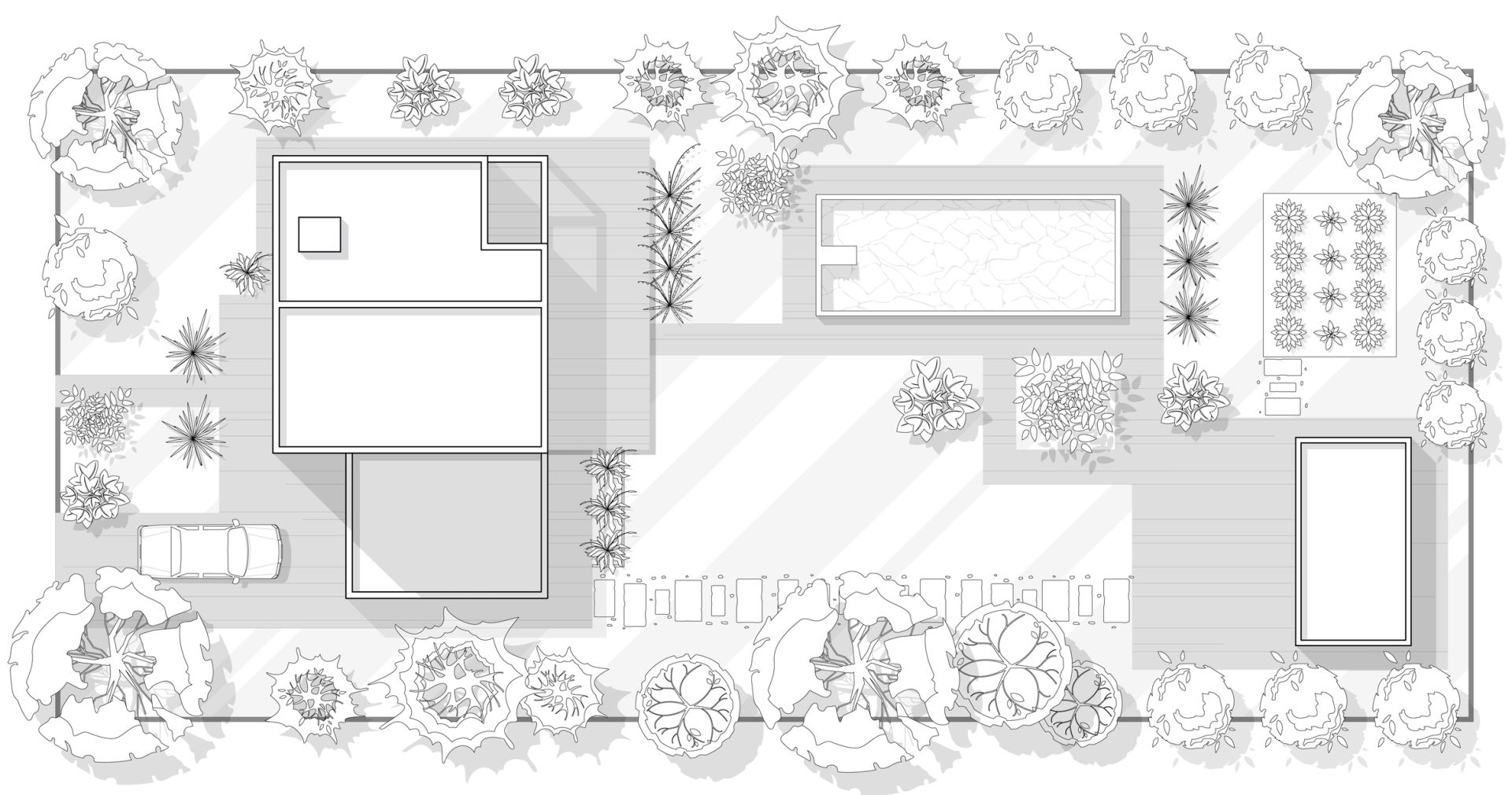
A site plan is one of the most important drawings in any residential landscape or architectural project, yet it’s often the most confusing.
Whether you’re a homeowner preparing for a permit or a designer creating your first drawings, a clear site plan example makes the process easier to understand.
Many people searching online want to see real site plan examples or find an example of a site plan they can use as a reference.
This guide breaks everything down simply so you can create, review, or improve your own plans with confidence.
Whether you’re a homeowner preparing for a permit or a designer creating your first drawings, a clear site plan example makes the process easier to understand.
Many people searching online want to see real site plan examples or find an example of a site plan they can use as a reference.
This guide breaks everything down simply so you can create, review, or improve your own plans with confidence.
What Is a Site Plan?
A site plan is a scaled top-down drawing that shows the full layout of a property—existing features, proposed improvements, planting areas, structures, driveways, utilities, and more.
If a floor plan represents the inside of a home, a site plan represents the entire parcel of land around it.
Site plans are used by:
When done well, an example of site plan drawing clearly shows how every part of a property connects and functions.
If a floor plan represents the inside of a home, a site plan represents the entire parcel of land around it.
Site plans are used by:
- Landscape designers and architects
- Contractors
- Homeowners preparing for permits
- Developers and builders
- HOAs and municipalities reviewing proposed designs
When done well, an example of site plan drawing clearly shows how every part of a property connects and functions.
Site Plan Example: What It Looks Like
A site plan example is most helpful when it clearly shows what a real, professional-quality plan should look like.
Although styles vary between architects, landscape designers, and engineers, the fundamentals remain surprisingly consistent across projects.
These shared elements ensure clarity, accuracy, and smooth communication during design and construction.
Below are the main components most site plan examples have in common.
Although styles vary between architects, landscape designers, and engineers, the fundamentals remain surprisingly consistent across projects.
These shared elements ensure clarity, accuracy, and smooth communication during design and construction.
Below are the main components most site plan examples have in common.
1. Clean, Organized Layout
A clean layout is the foundation of any strong site plan example because it shapes how information is presented and understood. Deliberate line weights, spacing, and visual hierarchy help viewers quickly see what is existing, what is proposed, and how each element relates to the site.
Clean layout characteristics include:
Clean layout characteristics include:
- everything shown from a top-down view
- clear outlines and shapes
- organized annotations and labels
- consistent line weights for hierarchy
2. Graphic Standards
Graphic standards are what separate a rough sketch from a professional site plan, using universal symbols and conventions so builders, homeowners, and reviewers can interpret the drawing correctly. They also make the plan visually cohesive and clear, which strengthens communication with clients.
Common graphic elements include:
Common graphic elements include:
- line weights that distinguish primary vs secondary elements
- hatching for different materials
- symbols for trees, shrubs, lights, and furniture
- a north arrow and graphic scale bar
- a title block and legend
3. Residential Site Plan Example
A residential example of a site plan shows the full context of a home, its surrounding yard, and any proposed outdoor improvements. It helps homeowners visualize how new patios, planting areas, or hardscape features integrate with existing conditions while giving contractors and municipalities a clear, review-ready layout.
Typical residential components include:
Typical residential components include:
- house footprint
- driveway and walkways
- planting areas
- patio or deck
- grading information
- boundary lines
- existing vegetation
4. Landscape Design Example
A landscape-specific site plan example goes deeper into plant selection, spatial design, and outdoor living elements, emphasizing how outdoor spaces connect and function. Designers use expressive symbols to communicate texture, density, planting style, and the overall structure created by trees, shrubs, and hardscape patterns.
Landscape-focused elements often include:
Landscape-focused elements often include:
- detailed plant groupings and symbols
- material patterns for patios, gravel, mulch, or lawn
- outdoor structures like pergolas, fire pits, kitchens
- contour lines or grading improvements
5. Concept vs. Construction Example
Concept site plans prioritize aesthetics and big-picture ideas, using color, texture, and loose graphics to communicate early design intent. Construction site plans are precise technical documents for permitting and building, and understanding the difference helps clients and homeowners recognize which stage of the process they’re viewing.
Differences include:
If you want your drawings to match the clarity and professionalism seen in these site plan examples, using high-quality graphics is essential. The Landscape Library CAD Library includes plant symbols, hardscape hatches, furniture blocks, and full graphic standards—everything you need to produce polished, client-ready plans.
Differences include:
- concept plans are visually expressive and idea-driven
- construction plans are fully annotated, dimensioned, and technical
- construction plans include materials, measurements, utilities, and grading
If you want your drawings to match the clarity and professionalism seen in these site plan examples, using high-quality graphics is essential. The Landscape Library CAD Library includes plant symbols, hardscape hatches, furniture blocks, and full graphic standards—everything you need to produce polished, client-ready plans.
What a Site Plan Should Always Include
A site plan is only effective when it captures the essential information needed to understand a property clearly. These are the core components found in almost every professional site plan example or downloadable template.
1. Property & Legal Items
Every site plan must begin with accurate property boundaries and legal information to ensure the design complies with local zoning rules. These elements create the framework that all other components rely on, making them the foundation of any complete plan.
These property items typically include:
These property items typically include:
- property lines
- setback requirements
- easements
- existing building footprint
- right-of-ways or shared drives
2. Buildings & Hardscape Layout
The next layer of a strong site plan example includes the structures and hardscape surfaces that shape how people move through the property. This is where the layout becomes functional, showing the flow of circulation and the placement of everyday outdoor spaces.
A complete site plan example will show:
A complete site plan example will show:
- driveways + walkways
- decks, patios, and terraces
- pools or water features
- fences and gates
- steps or retaining walls
3. Landscape & Planting Areas
Landscape elements bring structure, softness, and ecological function to a site plan. They help communicate the visual character of the design and how the planting strategy supports shade, privacy, and seasonal interest.
Most site plans examples include:
Clean symbols are crucial here—professional plants, textures, and line weights dramatically improve clarity. If you want your drawings to resemble polished site plan examples, the CAD Landscape Library provides every symbol used by working landscape designers to create clean, compelling plans.
Most site plans examples include:
- existing trees (marked clearly if to remain or be removed)
- proposed trees and shrubs
- perennial beds
- native planting zones
- lawn or meadow areas
Clean symbols are crucial here—professional plants, textures, and line weights dramatically improve clarity. If you want your drawings to resemble polished site plan examples, the CAD Landscape Library provides every symbol used by working landscape designers to create clean, compelling plans.
4. Grading & Drainage
Grading is one of the most overlooked elements, yet it plays a critical role in how a property functions. Without proper slopes and drainage paths, water can collect in unwanted areas or cause structural damage over time.
Grading information typically includes:
Grading information typically includes:
- contour lines
- spot elevations
- slopes
- swales
- drainage paths
5. Utilities & Infrastructure
Utility information helps builders, homeowners, and designers understand where key systems are located and how they connect. These elements influence everything from lighting installation to irrigation layout and safe excavation.
A complete example of a site plan will indicate:
A complete example of a site plan will indicate:
- water & sewer lines
- irrigation zones
- electrical + lighting paths
- gas lines (for grills, heaters, fire pits)
- downspouts + drain pipes
How to Create Your Own Site Plan (Beginner-Friendly)
If you’re preparing for a permit or starting your first landscape design, this simplified workflow will help you create a clear and accurate site plan. By following these steps in order, you’ll build a drawing that looks professional and communicates all the essential information needed for review or construction.
Step 1: Gather Your Base Information
Begin with a property survey if you have one, as it provides the most accurate measurements and boundary details. Surveys include information such as the house footprint, easements, and elevation points, which form the backbone of a reliable plan. If a survey isn’t available, take careful field measurements to establish a workable base.
Step 2: Choose Your Software
AutoCAD is the industry standard for professional site plan drafting and is ideal for accuracy and detailed layer control. Homeowners, however, may find SketchUp, Rhino, or even hand drafting more approachable depending on their comfort level. The software you choose will influence how quickly you can edit, dimension, and scale your work.
Step 3: Draw Property Lines at Scale
Start your drawing by establishing the boundaries of your property using the measurements from your survey or field notes. Setting the correct scale at this stage ensures that all elements you add later will be accurate and proportional. This is the foundation of any reliable example of site plan drawing.
Step 4: Add Existing Conditions
Once the boundary is in place, add the elements that already exist on the site. This includes the house footprint, driveway, walkways, major trees, utilities, and any other structures present. Documenting these details helps you understand constraints and opportunities before introducing new design elements.
Step 5: Add Proposed Hardscape Elements
Next, draw any new outdoor improvements such as patios, decks, pools, pergolas, fences, or outdoor kitchens. These hardscape additions define how your space will function and how circulation flows from one area to another. By placing them on the plan early, you create a framework for the planting and final design layers.
Step 6: Add Plants and Landscape Areas
This stage transforms your plan from technical to expressive by introducing plant symbols, textures, and landscape zones. Clean graphics help communicate density, scale, and design intent, which is why many designers rely on high-quality CAD blocks for consistency. Professional-looking plant graphics can elevate even a simple drawing into a polished site plan example.
Step 7: Label Everything
Clear labeling ensures your site plan can be understood by municipalities, contractors, or clients without confusion. Add notes, material callouts, dimensions, and directional arrows so every element is referenced directly on the plan. This step brings clarity and removes the guesswork from the construction process.
Step 8: Export as a PDF
Once the plan is complete, export it as a scaled PDF for easy printing, sharing, or permit submission. Most municipalities require digital submissions in a clear, standardized file format, making PDF the safest option. Be sure to include the scale bar, title block, and legend so the drawing is fully self-explanatory.
If you want to learn the full workflow of creating site plans using AutoCAD—from importing a survey to exporting a professional PDF—the AutoCAD for Landscape Design Course walks you through every step with real residential projects.
If you want to learn the full workflow of creating site plans using AutoCAD—from importing a survey to exporting a professional PDF—the AutoCAD for Landscape Design Course walks you through every step with real residential projects.
Benefits of the CAD Landscape Library
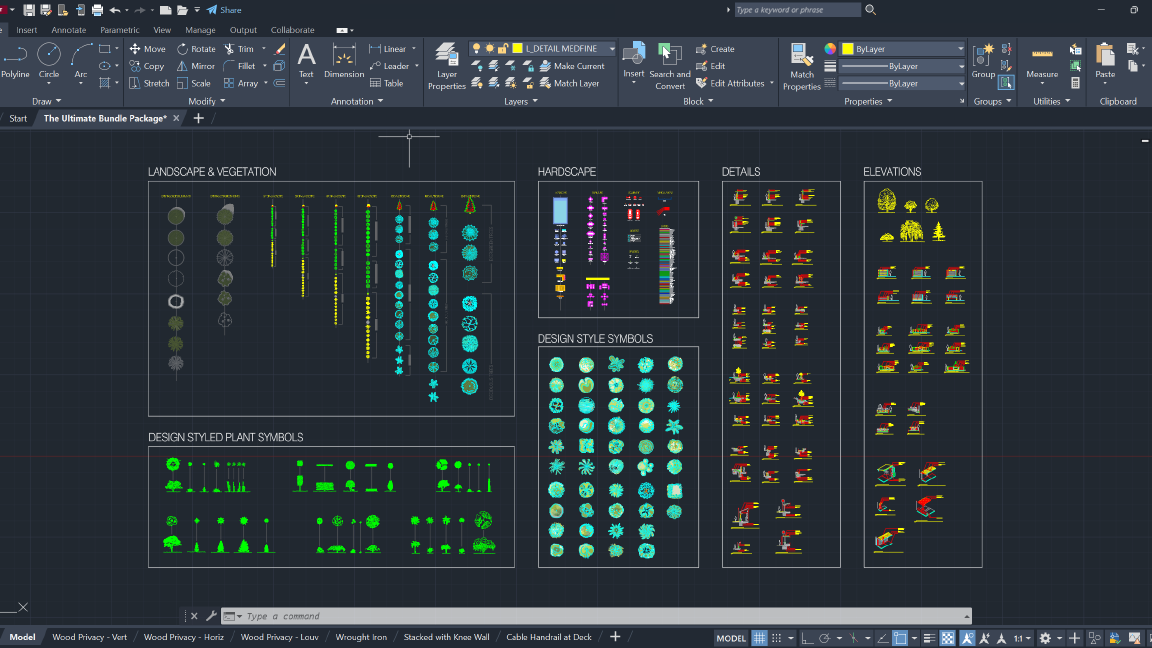
Professional designers rely on efficiency, clarity, and consistent graphic quality—and the CAD Landscape Library is built exactly for that. Instead of redrawing symbols or searching for clean graphics, you get a complete library of assets that instantly elevate the presentation quality of every plan you produce. The library helps you communicate design intent more clearly, streamline your workflow, and deliver polished drawings that stand out in client meetings and permit submissions.
With the CAD Library, professionals gain:
With the CAD Library, professionals gain:
- high-quality plant symbols that communicate structure, density, and style
- hardscape hatches for stone, pavers, gravel, wood decking, and soil textures
- outdoor furniture layouts for decks, patios, pools, and fire features
- tree, shrub, and ornamental grass graphics designed for clean linework
- specialty elements like pergolas, pools, outdoor kitchens, and fireplaces
- full elevation + 2D graphic sets for presentations and construction plans

The Landscape Library Academy is an online platform teaching landscape professionals, students, homeowners and enthusiasts how to design landscapes and master software for the field.
The Landscape Library Academy is the education division of The Landscape Library.
Click here to visit TheLandscapeLibrary.com for media including education articles, projects features and more.
The Landscape Library Academy is the education division of The Landscape Library.
Click here to visit TheLandscapeLibrary.com for media including education articles, projects features and more.
Company
Learn
Copyright © 2025