Mar 16 • Jordan Felber

CAD Blocks for Trees: Free Download for Landscape Designers

Related — AutoCAD for Landscape Design

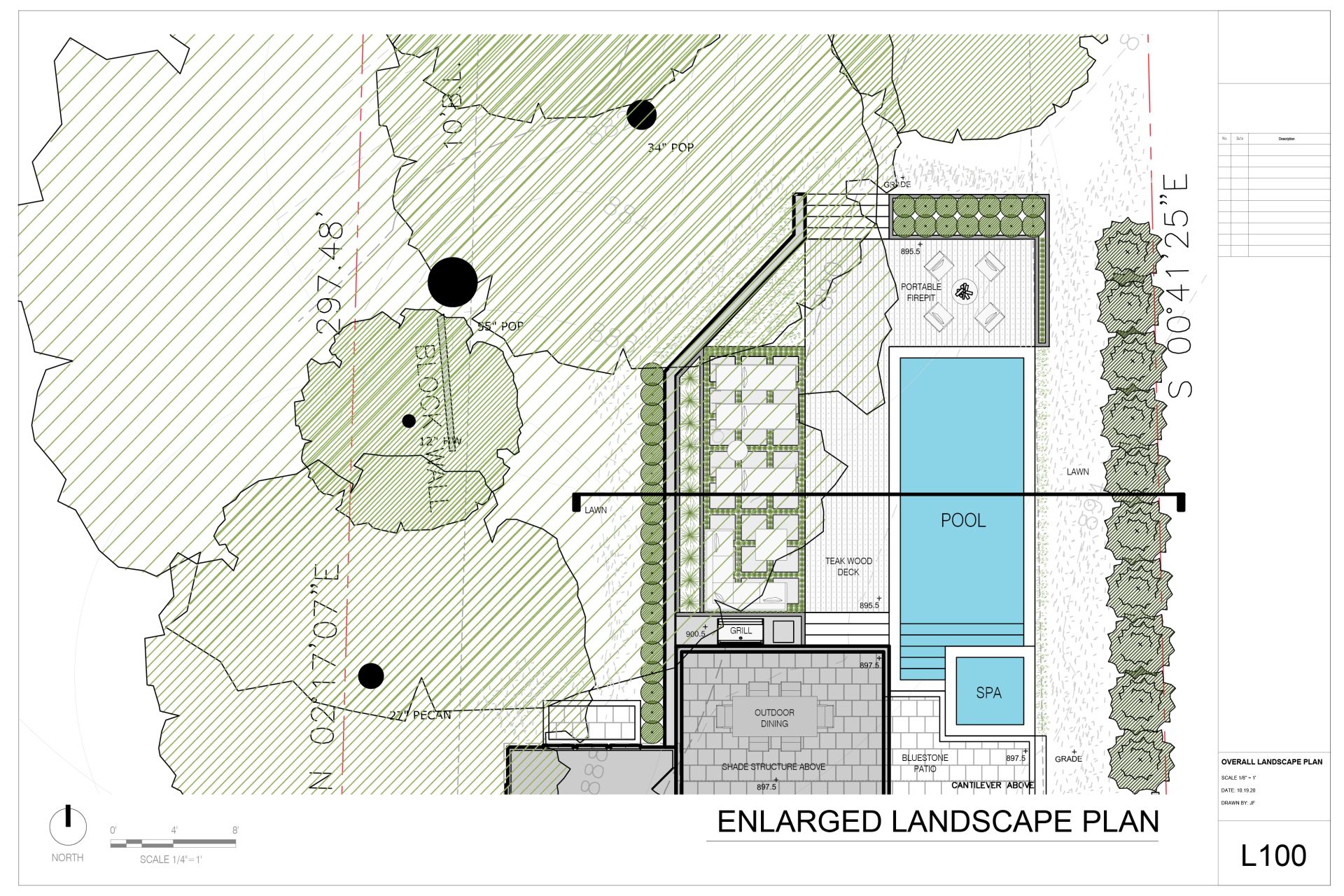
landscape drawing showing cad blocks for trees
CAD blocks for trees are essential drafting tools used by landscape designers when creating planting plans in AutoCAD. Instead of manually drawing each tree symbol, designers rely on reusable blocks that represent canopy size, trunk position, and planting layout. These blocks can be inserted into a drawing, scaled to the correct canopy diameter, and reused across an entire project.

Using tree CAD blocks improves drafting speed while maintaining a consistent graphic language throughout the drawing set. Because planting plans often include dozens or even hundreds of trees, standardized symbols allow designers to organize plantings clearly and communicate layouts efficiently.

For landscape architects, entry-level designers, and career transitioners learning CAD, understanding how tree blocks work is a foundational drafting skill. In this guide, you’ll learn what CAD tree blocks are, why they are used in professional drawings, the common types of symbols used in landscape plans, and how to insert them properly in AutoCAD. You’ll also be able to download a simple DWG pack of tree blocks to start building your own CAD library.

What Are CAD Blocks for Trees?

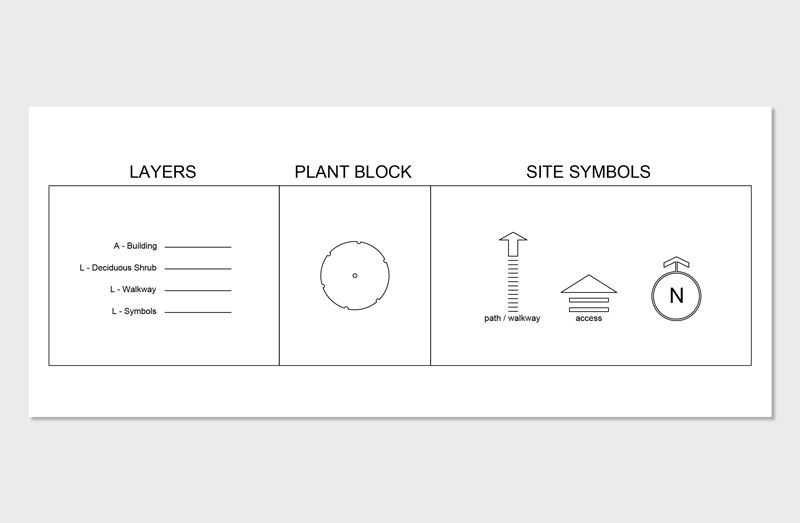
CAD blocks are reusable drawing objects saved inside a CAD file that can be inserted multiple times without recreating the geometry. CAD blocks for trees are standardized symbols used in landscape plans to represent individual trees and their canopy spread. Instead of drafting each tree manually, designers insert these blocks directly into the drawing.

In most landscape plans, tree blocks are shown in plan view as a canopy outline with a central trunk indicator. The symbol represents the mature spread of the tree, allowing designers to evaluate spacing and planting relationships within the layout.

Standardized tree blocks are important because landscape drawings must communicate planting information clearly to contractors, clients, and permitting authorities. By using consistent symbols across projects, designers maintain clarity within construction documents while reducing repetitive drafting work. Over time, many professionals build custom CAD libraries containing dozens or even hundreds of tree symbols tailored to their drawing style and workflow.

Design full 2D landscapes with AutoCAD in just a few weeks

Why Landscape Designers Use Tree CAD Blocks

Tree CAD blocks play a critical role in professional landscape drafting because they allow planting plans to be produced efficiently while maintaining clear graphic standards. Instead of drawing trees repeatedly, designers can insert prebuilt symbols that already contain the appropriate linework and proportions.

This approach significantly speeds up the drafting process. A planting plan that might contain fifty or more trees can be assembled quickly by copying and scaling blocks rather than redrawing geometry each time. Because each symbol is standardized, the overall drawing remains consistent and easier to interpret.

Tree symbols also help contractors understand planting layouts when reviewing construction documents. When canopy diameters are represented accurately in plan view, designers can study spacing relationships and ensure plantings will function properly as the landscape matures. For these reasons, reusable tree blocks are considered a fundamental component of efficient CAD workflows in landscape design.

Types of Tree CAD Blocks Used in Landscape Plans

Landscape drawings rely on several types of tree symbols depending on the purpose of the drawing and the level of detail required. Some blocks are designed for conceptual diagrams used during early design stages, while others are created specifically for construction documents where accurate spacing and canopy dimensions are critical.

Different species, planting conditions, and drawing scales may require different graphic representations. Understanding the major categories of tree CAD blocks helps designers choose the right symbol for each type of drawing and maintain clarity throughout the design process.

Deciduous tree symbols

Deciduous tree symbols represent trees that lose their leaves seasonally. In plan drawings, these CAD blocks typically appear as rounded canopy shapes with a small trunk marker at the center. The symbol often reflects the mature canopy spread of the tree species so spacing relationships can be evaluated accurately. Deciduous tree blocks are commonly used in residential planting plans, streetscapes, and park designs where shade trees form a major component of the planting layout.

Evergreen tree symbols

Evergreen tree symbols represent species that maintain foliage year-round, such as pines, spruces, and firs. These blocks are often drawn using radial or triangular linework that visually distinguishes them from deciduous trees in plan view. Designers frequently use evergreen tree CAD blocks to communicate screening plantings, vertical accents, or windbreaks within a landscape plan. Including different symbol types helps drawings convey planting structure and seasonal variation.

Top view vs elevation blocks

Most tree CAD blocks are drawn in plan view because planting plans are typically represented from above. Plan view symbols show canopy diameter and spacing relationships between trees. However, elevation blocks can also be useful in sections or presentation drawings where the vertical structure of the tree must be illustrated. Combining plan and elevation symbols allows designers to communicate both spatial organization and visual composition within the landscape.

Conceptual vs construction symbols

Conceptual tree symbols are simplified graphics used during early design phases or presentation diagrams. These symbols prioritize visual clarity rather than precise canopy measurements. Construction symbols, by contrast, are drafted with greater precision and represent accurate canopy sizes for planting plans. Using more detailed CAD blocks for construction drawings ensures contractors can interpret planting layouts correctly during installation.

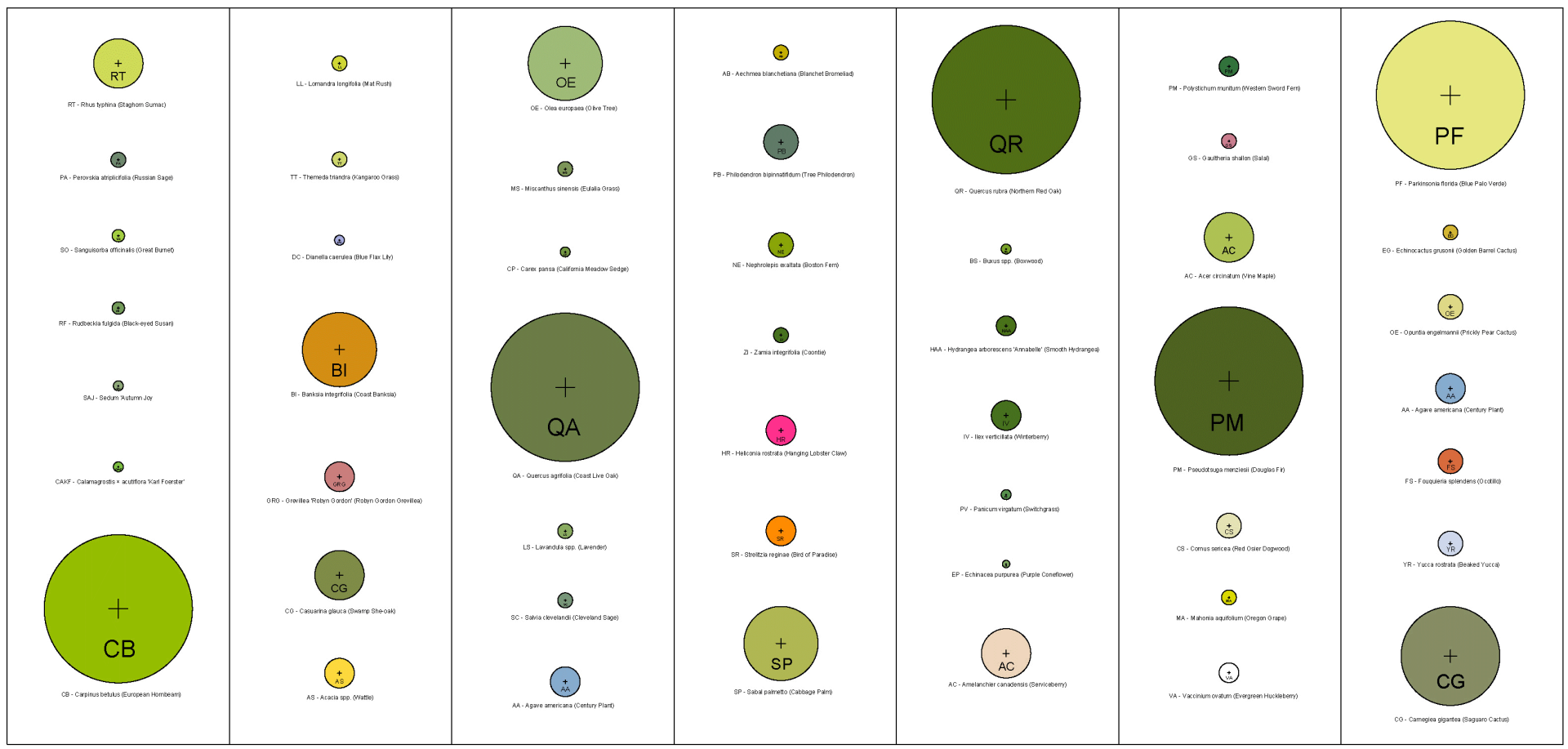
Design faster with pre-built CAD landscape symbols

Free Tree CAD Blocks Download

Many landscape designers build their own CAD libraries over time, collecting symbols that can be reused across multiple projects. A well-organized library saves significant drafting time and ensures drawings maintain a consistent graphic language.

A simple DWG pack of tree symbols can serve as a useful starting point for designers learning AutoCAD or developing planting plans. These blocks can be inserted directly into drawings and scaled to match the canopy diameter of different species.

Providing a downloadable set of CAD blocks for trees also helps designers quickly expand their drafting resources without creating each symbol from scratch. Many educational platforms and design publications offer downloadable CAD files in exchange for an email signup, allowing designers to receive additional drafting tools, tutorials, and symbol libraries that support their workflow.

How to Insert Tree CAD Blocks in AutoCAD

Once you have a collection of tree CAD blocks, inserting them into a drawing is straightforward. Most landscape designers keep their symbols organized in a dedicated block library file that can be accessed when drafting planting plans.

Step 1: Open your block library

Begin by opening the drawing file that contains your CAD block library. Many designers keep a dedicated DWG file that stores frequently used symbols such as trees, shrubs, and planting plan graphics.

Step 2: Insert the block

Use the INSERT command in AutoCAD to place the tree block into your drawing. Select the desired symbol from your library and choose the insertion point on the plan.

Step 3: Scale the symbol

Adjust the block scale so the canopy diameter matches the intended tree size. Some designers create multiple versions of the same symbol representing different canopy spreads.

Step 4: Rotate if needed

Rotate the block when necessary to create variation between symbols. Slight rotation helps planting plans appear more natural and avoids repetitive graphics.

Step 5: Copy across the planting plan

After placing the first symbol, use the COPY or ARRAY commands to distribute trees throughout the planting layout efficiently.

Best Practices for Tree Symbols in Landscape Plans

Tree symbols are most effective when they follow consistent drafting standards. One of the most important considerations is canopy diameter. Symbols should represent the mature spread of the tree species so designers can evaluate spacing relationships and avoid overcrowding.

Layer organization also plays a major role in clear drawings. Tree CAD blocks are typically placed on dedicated planting layers so they can be turned on or off easily within the drawing set. This makes drawings easier to manage when producing construction documents.

Clear labeling is another essential practice. Each tree symbol should correspond to a planting schedule that identifies the species, quantity, and planting size. When symbols, layers, and schedules are organized properly, planting plans become easier for contractors and collaborators to interpret during construction.

Learn How to Use AutoCAD for Landscape Design

Where to Get Professional CAD Blocks for Landscape Design

While basic tree symbols can be created quickly, professional CAD libraries often contain hundreds of specialized blocks used throughout landscape drawings. These libraries may include multiple tree styles, shrub symbols, groundcover graphics, and other planting elements designed to streamline drafting workflows.

Many landscape designers gradually build custom symbol libraries that reflect their preferred graphic style and typical project requirements. Over time, these libraries become valuable resources that significantly reduce drafting time.

For designers learning AutoCAD, curated block libraries and structured training can accelerate the learning process dramatically. Access to well-organized CAD blocks for trees and other planting symbols allows designers to focus on design decisions rather than repetitive drafting tasks while producing professional-quality planting plans.

Frequently Asked Questions About Tree CAD Blocks

What are CAD blocks for trees?

CAD blocks for trees are reusable AutoCAD symbols that represent trees within landscape drawings. Instead of drafting each tree individually, designers insert these prebuilt symbols into planting plans. The blocks usually show the canopy outline and trunk location so spacing relationships can be evaluated accurately within the design.

Where can I download tree CAD blocks?

Tree CAD blocks can be downloaded from CAD resource libraries, landscape design education platforms, or professional drafting toolkits. Most downloadable blocks are provided as DWG files so they can be inserted directly into AutoCAD drawings and reused across projects.

How do you scale tree CAD blocks in AutoCAD?

Tree blocks can be scaled using the SCALE command in AutoCAD. Designers typically adjust the block size so the canopy diameter reflects the mature spread of the tree species. This ensures planting plans communicate accurate spacing relationships.

What size should tree symbols be in a planting plan?

Tree symbols should represent the mature canopy diameter of the species being planted. Drawing trees to scale allows designers to evaluate spacing, shade coverage, and long-term plant growth within the landscape plan.

Why do landscape designers use standardized tree symbols?

Standardized symbols improve drawing clarity and consistency. When the same symbols are used throughout a project, planting plans become easier for contractors, collaborators, and clients to understand.

What file format are tree CAD blocks usually provided in?

Most tree CAD blocks are distributed in DWG format, the native file type used by AutoCAD. Some libraries may also provide DXF files for compatibility with other CAD software.