Jun 11 • Jordan Felber

Shrub CAD Blocks: How to Use, Create, and Organize Shrub Symbols in AutoCAD

Related — Level 2 CAD Landscape Library

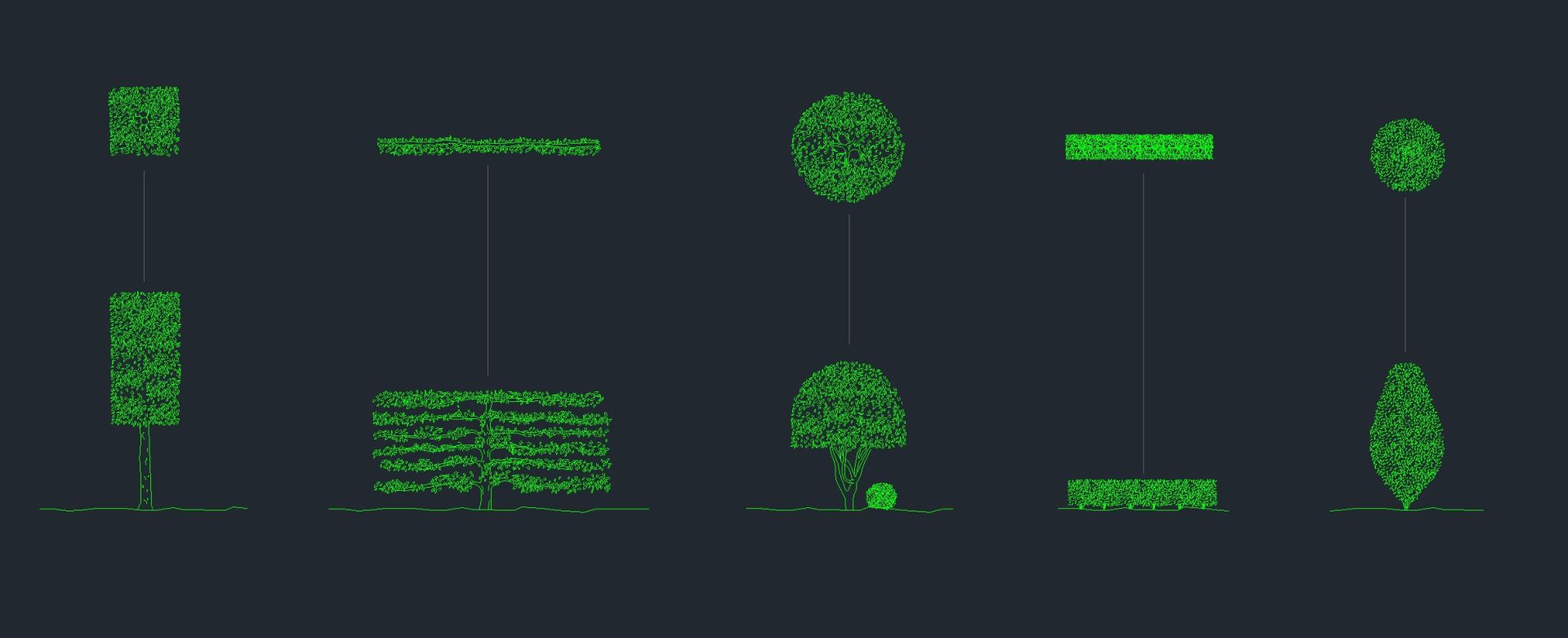
shrub cad block
Shrub CAD blocks are among the most frequently used drafting elements in landscape design. Whether you are developing a conceptual planting plan, a permit set, or a detailed construction document, shrub symbols help communicate planting intent quickly and consistently.

Unlike tree CAD blocks, which often act as focal points within a landscape plan, shrubs typically form the framework that organizes space, defines edges, screens views, and creates planting mass. Because shrubs are used extensively throughout residential and commercial projects, the ability to efficiently place, scale, and manage shrub CAD blocks can significantly improve drafting speed and drawing quality.

In this guide, you'll learn what shrub CAD blocks are, why landscape designers use them, how to create and organize them in AutoCAD, and the common mistakes to avoid when building a professional plant symbol library.

What Is a Shrub CAD Block?
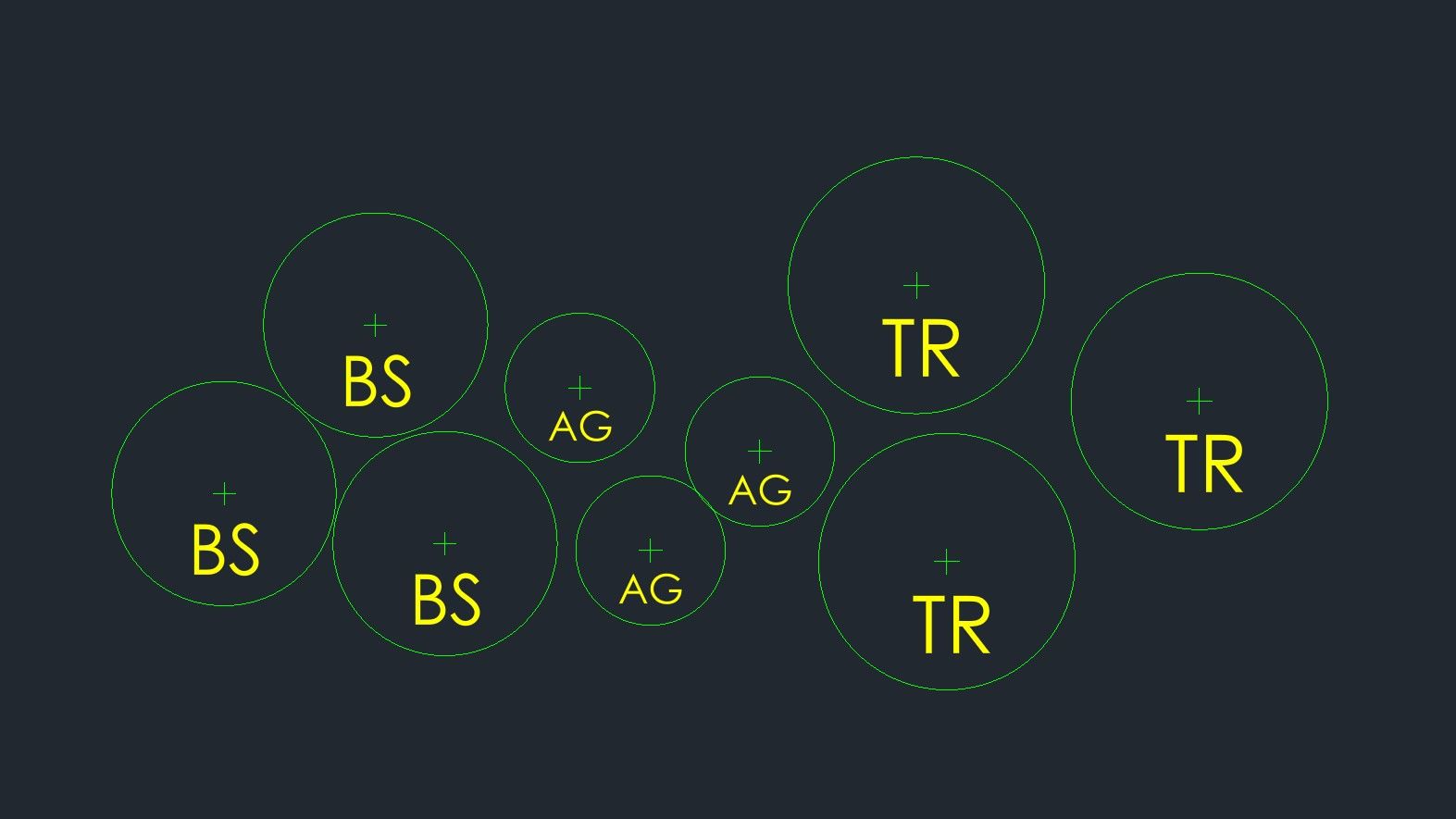

A shrub CAD block is a reusable AutoCAD object that represents a shrub within a landscape plan. Instead of redrawing plant symbols repeatedly throughout a project, designers create a block once and insert it wherever needed.

Blocks allow landscape designers to maintain consistency across drawings while reducing drafting time. Because the geometry is stored as a single object, any modifications can be managed more efficiently than individual linework.

Shrub CAD blocks are commonly used in:
- Planting plans
- Site plans
- Concept plans
- Permit drawings
- Construction documents
- Landscape master plans

Most shrub blocks are drawn in plan view and represent the mature size or intended planting size of a shrub. Depending on the graphic style of the drawing, symbols may range from simple circles to highly detailed hand-drawn representations.

Why Landscape Designers Use Shrub CAD Blocks

Landscape drawings must communicate information clearly while remaining efficient to produce. Shrub CAD blocks help achieve both objectives. Because shrubs often appear in large groupings, using standardized symbols allows designers to focus on design decisions rather than repetitive drafting tasks.

The value of shrub CAD blocks extends beyond speed. They also improve communication between designers, clients, contractors, and permitting agencies.

Faster Draft Production

Planting plans frequently contain dozens or hundreds of shrubs. Using pre-built symbols eliminates the need to redraw common plant graphics repeatedly. Designers can simply insert, copy, or array existing blocks as needed. Over the course of a project, this can save hours of drafting time.

Consistent Graphic Standards

Consistency is critical in professional drawing sets. If every shrub is represented differently, drawings become visually confusing and more difficult to interpret. Using standardized shrub blocks ensures that symbols maintain a consistent appearance across all sheets and project phases.

Easier Revisions

Planting plans often change throughout design development. A shrub mass may need to be expanded, reduced, or reconfigured based on client feedback or site conditions. Because blocks can be copied, deleted, and modified quickly, revisions become significantly easier to manage.

Design Faster with Pre-Built Plant Symbols & Construction Details

Common Shrub CAD Block Styles

Not all shrub symbols are created the same way. Different drawing types require different levels of graphic detail. Understanding the major categories of shrub CAD blocks helps designers choose the appropriate symbol style for each project.

Single-Line Shrub Blocks

single line shrub cad blocks
Single-line shrub symbols are among the simplest representations used in landscape drafting. These blocks typically consist of a single circular outline with minimal interior detail. Because they are lightweight and easy to read, they are commonly used in construction documents and large-scale planting plans.
Empty space, drag to resize

Double-Line Shrub Blocks

double line shrub cad blocks
Double-line symbols add an additional perimeter line to create more visual weight. Many professional landscape architects use this style because it provides a balance between simplicity and graphic richness.
Empty space, drag to resize

Hand-Drawn Shrub Symbols

hand drawn shrub cad blocks
Hand-drawn shrub blocks introduce a more artistic quality to drawings. These symbols may include irregular outlines, sketch-style edges, or varied line weights that mimic hand drafting techniques. They are commonly used for conceptual presentations and client-facing graphics.
Empty space, drag to resize

Presentation Shrub Blocks

presentation shrub cad blocks
Presentation symbols prioritize aesthetics over technical documentation. They often contain hatching, fills, color, textures, or highly detailed graphic elements. While visually appealing, presentation blocks are generally less appropriate for construction drawings where clarity is the primary objective.

How Shrub CAD Blocks Improve Drafting Speed

One of the greatest benefits of a shrub library is the ability to streamline repetitive workflows. Professional landscape designers rarely start every project from scratch. Instead, they build systems that allow them to reuse proven resources across multiple projects. Shrub CAD blocks are one of the foundational components of that system.

Reducing Repetitive Tasks

Without blocks, each shrub must be drafted individually. With blocks, inserting a shrub becomes a matter of seconds rather than minutes. This time savings compounds dramatically across larger projects.

Simplifying Planting Plan Layouts

Mass plantings often require dozens of repeated symbols. Using shrub blocks allows designers to rapidly test different layouts, spacing strategies, and planting compositions without recreating geometry.

Supporting Template-Based Workflows

Many firms maintain template files containing plant symbols, layers, schedules, and annotation standards. A well-organized shrub library integrates directly into these workflows and helps maintain consistency between projects.

How to Create a Shrub CAD Block in AutoCAD
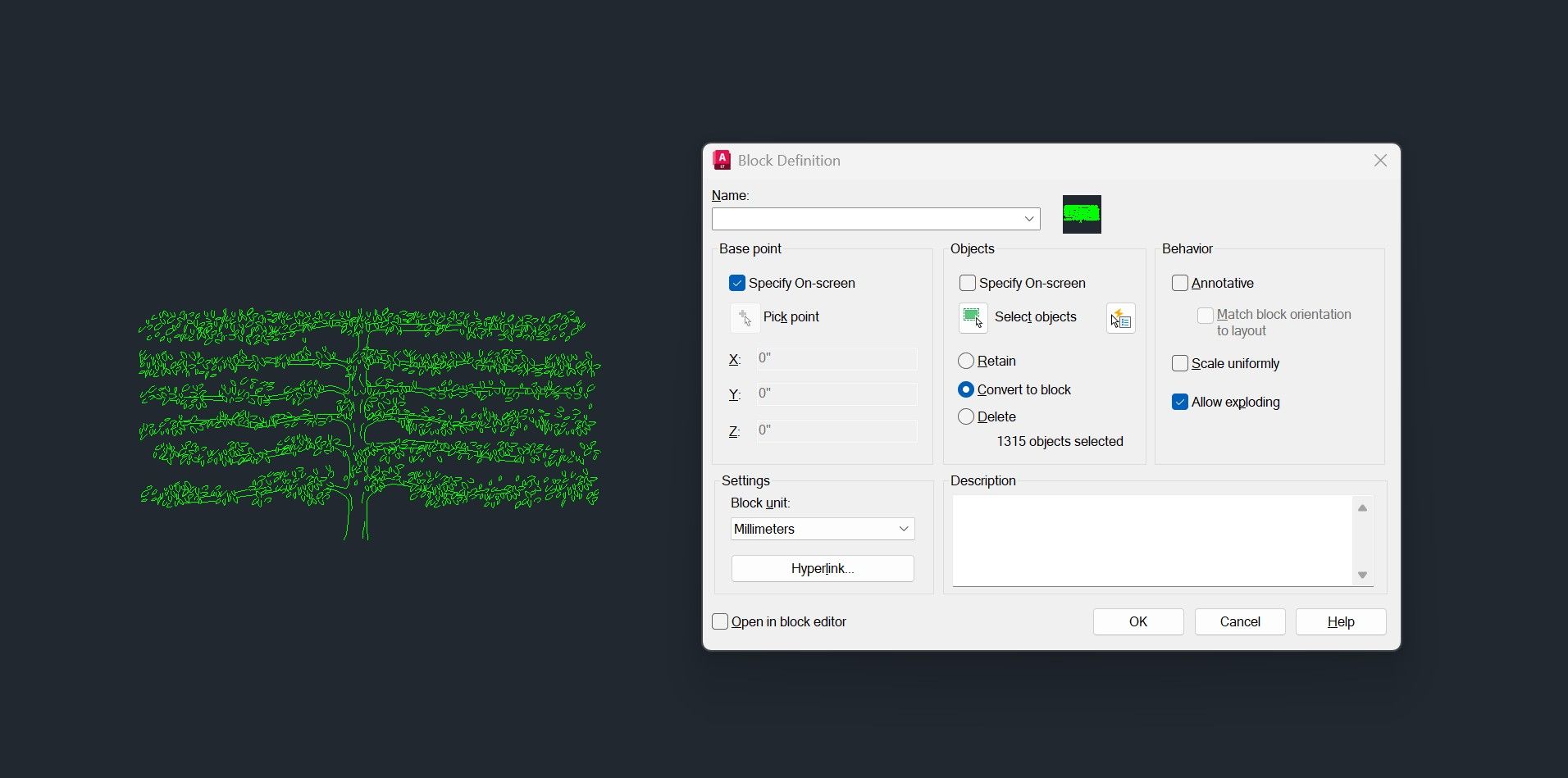
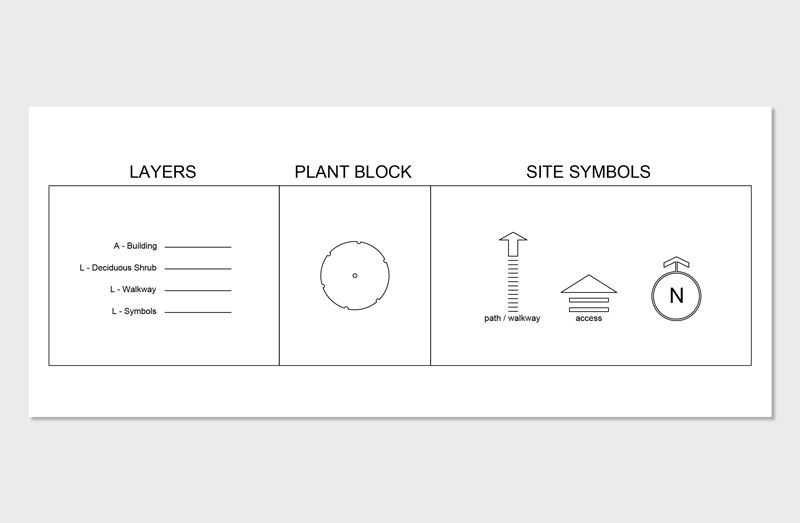
how to create shrub cad block
Creating shrub CAD blocks is relatively straightforward. Once the process is understood, designers can rapidly build extensive symbol libraries tailored to their drafting style.

Step 1: Draw the Symbol

Begin by drawing the shrub graphic. This can be as simple as a circle or as detailed as a custom hand-drawn symbol. The level of detail should match the intended use of the drawing.

Step 2: Convert the Geometry into a Block

Select the geometry and use the BLOCK command in AutoCAD. Assign a unique name to the symbol and define an insertion point. The insertion point is typically placed at the center of the shrub.

Step 3: Save and Test the Block

Insert the newly created block into a separate area of the drawing. Verify that scaling, rotation, and insertion behavior function as intended. Making adjustments early prevents future issues when the block is used across multiple projects.

Step 4: Add the Block to Your Library

Store shrub blocks within a dedicated library folder. As your collection grows, organized storage becomes increasingly important.

Best Practices for Shrub CAD Block Organization

A well-designed symbol library is just as important as the symbols themselves. Without an organizational system, finding and managing blocks becomes increasingly difficult over time. The most efficient landscape designers invest significant effort into building standardized libraries.

Layer Structure for Shrub Blocks

Each shrub block should be assigned to appropriate planting layers.

Common examples include:
• L-PLNT-SHRB
• L-PLNT-HEDGE
• L-PLNT-MASS

Consistent layer management improves visibility control and simplifies plotting.

Naming Conventions for Shrub Symbols

Naming systems should be predictable and scalable. Rather than generic names such as "Shrub1" or "PlantBlock," use descriptive naming conventions.

Examples include:
• SHR_Boxwood
• SHR_Viburnum
• SHR_Hydrangea
• SHR_Holly

Clear naming improves efficiency and reduces confusion when multiple designers work within the same file and allow designers to know what plants are being used by clicking on the symbol and in properties, determined the type of shrub.

Design Faster with Pre-Built Plant Symbols & Construction Details

Common Mistakes to Avoid

Even experienced designers occasionally encounter problems when managing plant symbol libraries. Recognizing common mistakes can help improve drawing quality and workflow efficiency.

Using the Same Symbol for Every Shrub

Different plant types often require different visual representations. Using identical symbols throughout a planting plan can reduce clarity and limit communication.

Exploding Blocks Unnecessarily

Exploding blocks removes many of the advantages that make them useful. Whenever possible, maintain blocks as reusable objects rather than converting them back into individual geometry.

Ignoring Layer Standards

Poor layer management can quickly create confusion within complex projects. Establish standards early and apply them consistently.

Building Disorganized Libraries

An unorganized library eventually becomes difficult to maintain. Investing time in proper naming, folder structures, and standards pays dividends over the life of a career.

Frequently Asked Questions About Shrub CAD Blocks

What are shrub CAD blocks?

Shrub CAD blocks are reusable AutoCAD symbols used to represent shrubs within landscape drawings.

Should shrub CAD blocks be drawn at mature size?

Many landscape designers draft shrubs at mature spread dimensions because it helps evaluate spacing and long-term growth.

What is the best shrub CAD block style?

The best style depends on the drawing type. Construction documents typically use simpler symbols, while presentation plans may use more detailed graphics.

How do landscape architects organize shrub CAD blocks?

Most firms organize blocks by plant category, layer structure, and naming convention within a centralized CAD library.

Can shrub CAD blocks improve drafting speed?

Yes. Reusable blocks reduce repetitive drafting tasks, simplify revisions, and improve consistency across projects.